How to Add an Email Signature in Outlook
A polished email signature elevates your messages. It conveys professionalism by showcasing your contact info and branding subtly, leaving a lasting positive impression. Let’s follow step-by-step instructions to add Signature in Email.






The Finishing Touch: Crafting a Professional Email Signature in Outlook
In today’s digital age, email remains a cornerstone of professional communication. A well-crafted email signature can elevate your messages, leaving a lasting and positive impression on recipients.
This guide will explain the process of adding an email signature in Outlook, with step-by-step instructions for both the desktop application and Outlook web version.
Why Use an Email Signature?
Beyond simply displaying your name, an email signature offers a range of benefits:
Professionalism: A signature adds a polished touch to your emails, conveying a sense of credibility and organization.
Convenience: It eliminates the need to manually type your contact information each time you compose an email.
Brand Awareness: Include your company logo or website address to subtly promote your brand.
Increased Response Rates: Social media links in your signature can encourage recipients to connect with you on other platforms.
Crafting Your Signature
Before diving into the technical aspects, consider the content of your signature. Here are some key elements to include:
Your Full Name: This forms the foundation of your signature.
Job Title: Convey your position within the company.
Company Name: Clearly identify your organization.
Contact Information: Include your phone number and email address. The email address the message is sent from is usually omitted.
Optional Elements: Consider adding your website address, social media links such as LinkedIn or Twitter, or a professional image.
Keep it concise and avoid excessive graphics that might not display correctly on all devices.
Adding Image or HTML Signature in Outlook Web Version
Step 1: Open Outlook Options
Open Edge Browser and select “Options” as shown in the screenshot. This will open Outlook.

Step 2: Select Setting
In the Outlook window, click on “Setting” in the right-hand menu. This will bring up settings related to Mail.

Step 3: Click on Compose and Reply
Under the “Compose and Reply” section, you’ll see a button for “Signatures.” Click on that.
This will open the Email Signature window where you can create and edit your signatures.

Step 4: Create a New Signature
In the Email Signature tab, click on “New.”
Type a name for your signature. This is just for your reference to distinguish between different signatures you may create.
If you want to add an HTML signature, paste the HTML code into the text box.
If you want to add a signature image, upload it using the image upload option.

Step 5: Customize Your Signature
Type your desired signature text in the edit box.
You can also format the text and add images or links if you wish. Get creative. Your signature is a reflection of you and your brand.

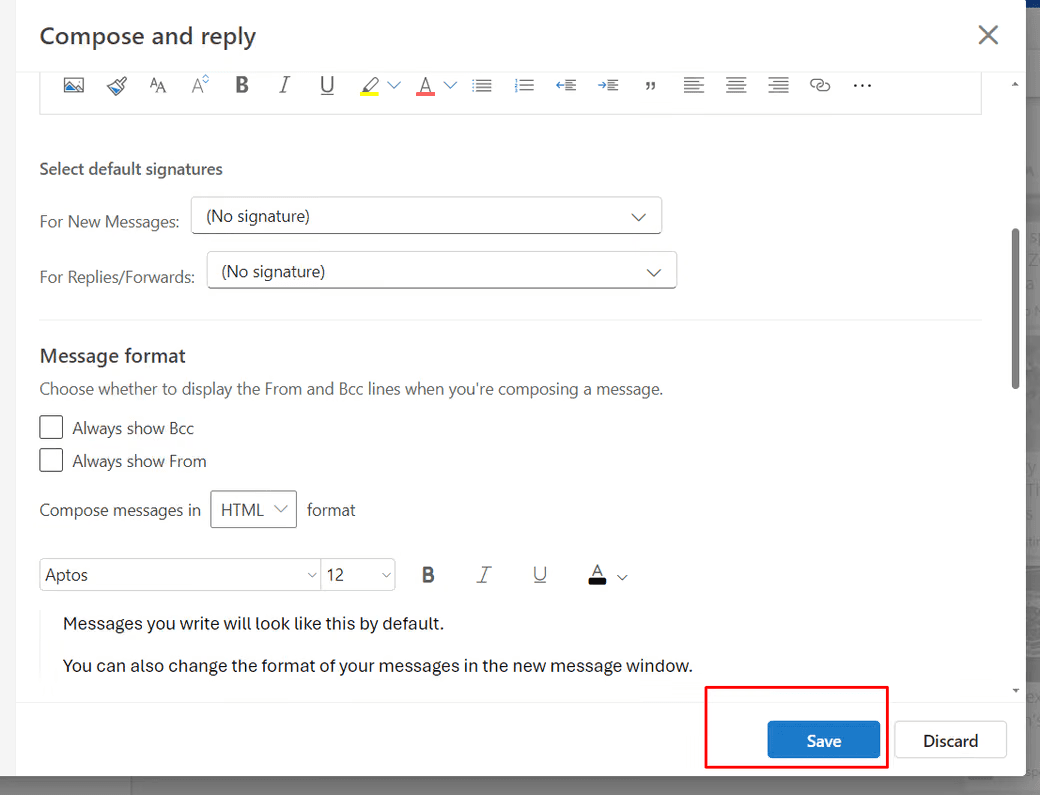
Step 6: Set Default Signatures
Choose which email account to attach your signature to.
Decide if you want it to appear on new emails, replies, or both.
You can have different signatures for different email accounts or scenarios.

Step 7: Save and Close
Click “OK” to save your signature.
Then click “OK” again in the Outlook Options window to close it.
Adding Image or HTML Signature in Outlook Desktop
Step 1: Access Settings
Click the gear icon in the top-right corner of your mailbox.

Step 2: Select Signature
In the “Account” section, select the “Signature” option.

Step 3: Add Your Signature
Now you can add a signature as per your choice.
If you want to add a signature image, upload it using the image upload option.
If you want to add an HTML signature, paste the HTML code into the text box.
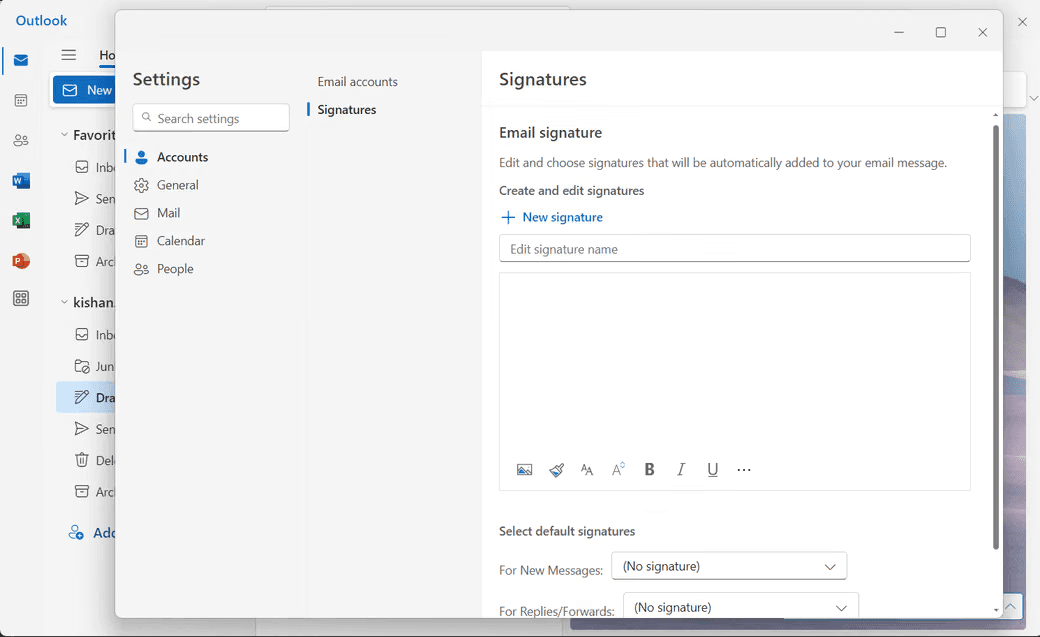
Step 4: Set Default Signatures
Choose which email account to attach your signature to.
Decide if you want it to appear on new emails, replies, or both.
You can have different signatures for different email accounts or scenarios.

Step 5: Save and Close
Click “OK” to save your signature.
Then click “OK” again in the Outlook Options window to close it.

More blogs.
Browse everything we’ve written — from quick tips to deep dives on design, dev, and digital work.