How to Create Profile on Google My Business & How to add new user in GMB
Let’s walk through a detailed guide on how to create a Google My Business profile, including the process of adding a new user to the GMB profile. This way, you can effectively showcase your local business to your specific target audience.






Google My Business is a free service provided by Google that allows businesses to manage their online presence across Google Search and Google Maps.
By creating and managing a business profile on Google, businesses can make it easier for potential customers to discover and learn about them.
Here are some of the key features and benefits of Google My Business:
Business Information Management: GMB allows businesses to share accurate and updated information such as business name, address, contact number, operating hours, and website. This information appears in Google Search and Maps.
Local Search Engine Optimization: A well-optimized GMB profile can improve business visibility in local search results and help attract nearby customers.
Customer Reviews and Ratings Management: Businesses can manage and respond to customer reviews. Positive reviews help build trust, while replies to negative reviews show customer care.
Visual Content Display: Businesses can upload photos and videos to show their products, services, and premises.
Insights and Analytics: GMB provides insights such as profile views, clicks, phone calls, and website visits so businesses can understand customer actions.
Integration with Google Maps: A complete GMB profile helps customers find the physical business location easily on Google Maps.
Posts and Updates: Businesses can share updates, offers, events, and other information through GMB posts.
Google My Business is a valuable tool for businesses that want to manage their online presence, especially for local search and customer discovery.
Step-by-Step Guide for Creating a Google My Business Profile
If your Business Profile is already created, open the GMB profile and jump to Step 19 to follow the profile sharing steps.
If your business is not submitted on GMB, follow the steps below.
Step 1: Go to the GMB Page and Sign In
Go to the Google Business page and sign in to your profile.

Step 2: Enter Your Business Name
Enter the business name that you want to make visible on Google.

Step 3: Select Your Business Type
Choose the business type that best matches your business.

Step 4: Add Your Website
Add your business website URL if you already have one.

Step 5: Add Business Category
Select the business category that best describes your business.

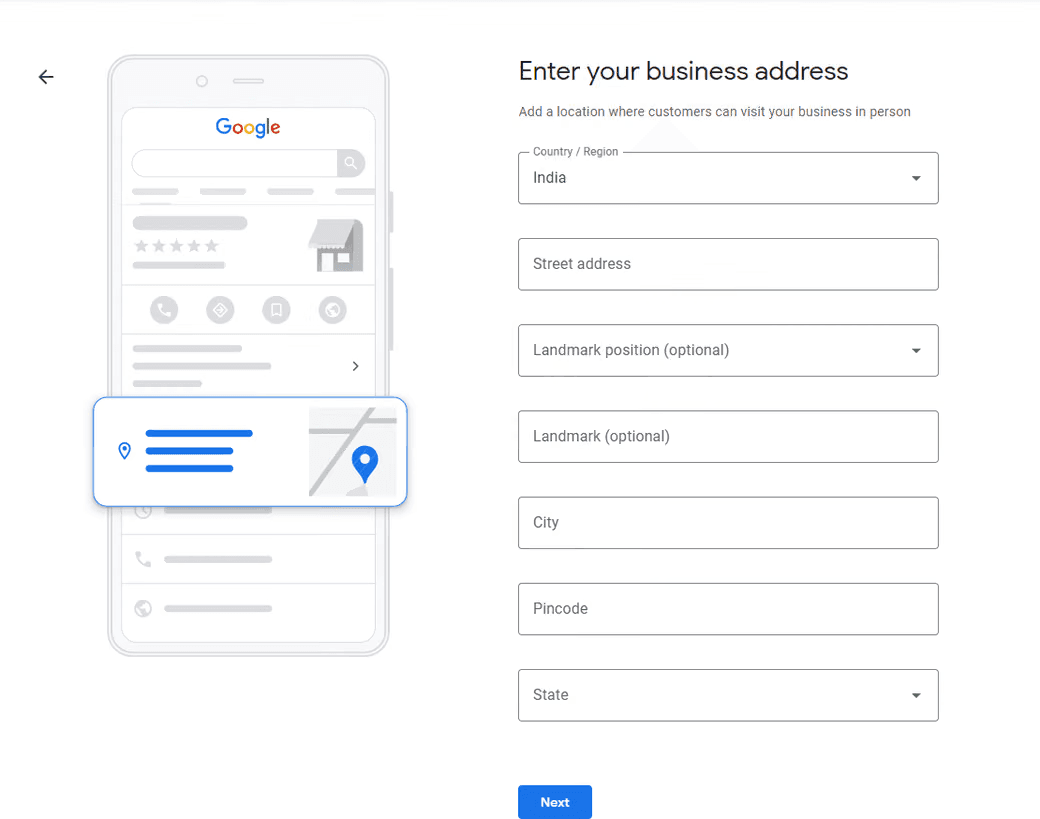
Step 6: Add Your Business Address
Enter your correct business address.
Step 7: Mark Your Exact Location
Mark your exact business location on the map.

Step 8: Add Your Business Contact Number
Add your business phone number so customers can contact you.

Step 9: Agree to Terms and Conditions
Select the checkbox as per your preference and agree to the terms and conditions.

Step 10: Verify Your Business Profile on GMB
Verify your business profile on GMB.
If you want to verify it later, click on the “Verify Later” option.
Note: Business verification is a very important step because it helps Google recognize your business. It also enables your profile to appear on Google Search. Without profile verification, Google may not show your GMB profile in search results.

Step 11: Add Your Services
Add the services your business provides.

Step 12: Add Your Business Hours
Add your business opening and closing hours.
Note: Adding business hours helps customers easily check your business timing.

Step 13: Enable the Message Option
Enable the message option so customers can send messages to your business.

Step 14: Add Your Business Description
Add a detailed business description explaining what you do and how you help your customers.

Step 15: Add Real Business Images
Add real images that describe your business. This helps customers identify your business better.

Step 16: Skip Ads if Not Required
Skip this step if you do not want to run ads.

Step 17: Click on Continue
Click the Continue button to move ahead.

Step 18: Business Profile Created
Your Business Profile is now created.

How to Add a New User in GMB
Step 19: Select the Business Location
From the list of available locations after logging in, select the location where you want to grant user access.

A Google Search results page will open with the selected Google Business Profile at the top.
Open the menu by clicking the three dots in the top-left corner and select “Business Profile settings” from the menu.

Step 20: Select Managers
Select “Managers” in the pop-up that opens.

Step 21: Click on Add
Click on the “Add” button to grant access to a new user.

Step 22: Enter Email and Select User Role
Enter the email address of the new user.
Select the correct user role that you want to grant to the new user.
Then click on “Invite.”

Step 23: New User Added Successfully
Now the new user has been added successfully.
After accepting the invitation, the new user can access and manage your GMB profile.

What Are Some Best Practices for Optimizing My GMB Profile?
Improving your Google My Business profile is important for boosting your online visibility. Here are some simple tips for optimizing your GMB profile:
Take Control of Your Business Profile: Make sure you have ownership of your business information on Google.
Complete All Sections of Your GMB Account: Fill in all details to provide complete business information.
Accuracy in Contact Information: Check that your business name, address, and phone number are consistent across online platforms.
Choose Relevant Categories: Select primary and secondary categories that accurately represent your business.
Highlight Business Attributes: Showcase specific business features that customers may find valuable.
Craft a Detailed Business Description: Write a detailed and keyword-focused description of your business.
Regularly Share Updates with Google Posts: Share weekly updates, offers, events, and relevant information.
Frequently Add New Photos: Keep your profile visually appealing by adding high-quality and descriptive photos.
Engage with Customer Questions: Respond quickly to questions from customers or potential customers.
Encourage and Respond to Reviews: Encourage customers to leave reviews and respond to both positive and negative feedback.
Provide Detailed Product or Service Information: Add complete details about your products or services.
Enable Messaging: Allow customers to communicate with you directly through GMB messaging.
Regularly Update Your Profile: Keep your GMB profile current and accurate.
A well-optimized GMB profile can improve local search visibility, attract more customers, and increase overall engagement.
More blogs.
Browse everything we’ve written — from quick tips to deep dives on design, dev, and digital work.